
You can easily import leads into Outboundry directly from LinkedIn’s standard search results using a Free or Premium LinkedIn account.
This method allows you to build highly targeted outreach campaigns without manually copying profile URLs.
🔎 Step 1: Perform a LinkedIn Search
Go to LinkedIn.com
Use the search bar to enter your target keyword (e.g., “Marketing Manager”, “Founder”, “HR Director”)
Click the People filter
Refine your results using filters such as:
Location
Current company
Industry
Connections (1st, 2nd, 3rd)
Language
💡 The more refined your search, the better your campaign targeting and reply rate.
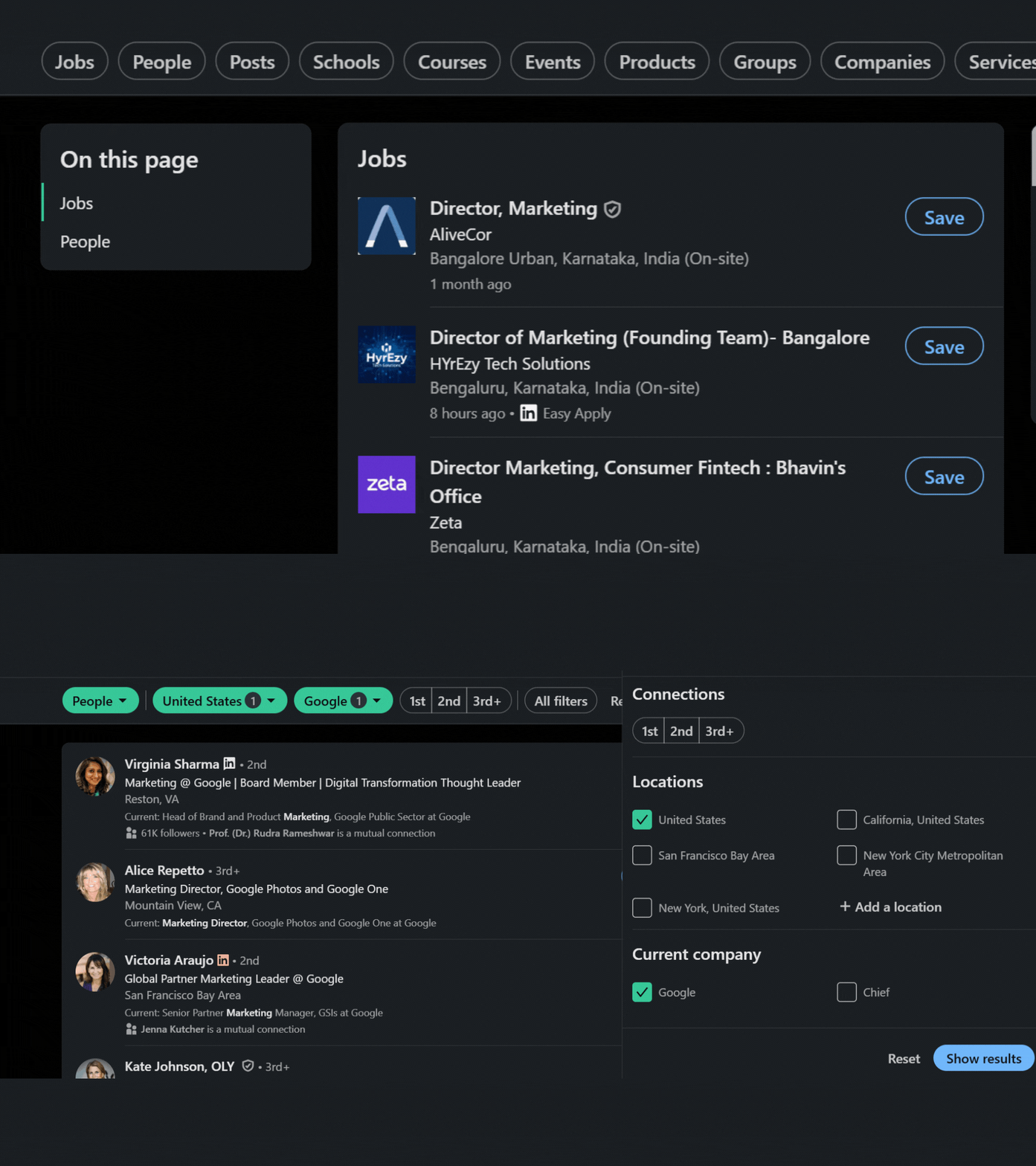
Perform Your Search on LinkedIn
📋 Step 2: Copy the Search URL
Once your search filters are applied:
Copy the full URL from your browser’s address bar
Ensure the URL reflects the filtered results
Example:
https://www.linkedin.com/search/results/people/?keywords=founder&location=...🚀 Step 3: Import Leads into Outboundry
Go to your desired Campaign in Outboundry
Navigate to the Leads tab
Click Import Leads
Select LinkedIn Search
Paste the copied LinkedIn search URL
Choose how many leads you want to import
Click Start Import
Outboundry will begin fetching leads from your LinkedIn search results.
📊 What Information Gets Imported?
For each lead, Outboundry imports:
First Name
Last Name
LinkedIn Profile URL
Job Title
Company Name
Location
Headline
You can later enrich these leads with email finder (if enabled) to run multi-channel campaigns.
⚙️ Important Notes
LinkedIn may limit how many profiles can be accessed per day
Very large searches should be imported in batches
Only publicly visible search results accessible to your account can be imported
1st, 2nd, and 3rd degree connections can be imported depending on your search filters
🔁 Can I Import More Leads Later?
Yes. You can import additional leads into the same campaign anytime by repeating the process.
🎯 Best Practices for Better Results
Use specific job titles instead of broad keywords
Filter by location and industry for better targeting
Avoid importing thousands of leads at once
Use multi-channel campaigns (LinkedIn + Email) for higher reply rates
✅ Summary
With LinkedIn Free or Premium accounts, you can import filtered search results directly into Outboundry campaigns and start outreach immediately — no manual copy-pasting required.
If you face any issues during import, reach out via in-app support.