LinkedIn Campaigns help you automate your LinkedIn outreach by sending connection requests, messages, InMails, profile views, follows, likes, comments, and other LinkedIn actions to your prospects. Using Outboundry's visual campaign builder, you can create personalized outreach sequences, assign one or more LinkedIn sender accounts, and engage prospects automatically while staying within your configured activity limits.
Before creating a LinkedIn campaign, make sure you have:
At least one connected or rented LinkedIn account.
A list of prospects to contact.
A campaign sequence planned.
If you haven't connected a LinkedIn account yet, see How to Connect a LinkedIn Account.
Navigate to Campaigns.
Click New Campaign.
Enter a name for your campaign.
Select LinkedIn as the campaign type.
The first step is to import the prospects you want to include in your campaign.
Outboundry supports multiple lead sources, allowing you to build campaigns from LinkedIn searches, Sales Navigator, Recruiter, events, groups, and more.
You can import leads using any of the following methods:
Upload a CSV file containing your prospects.
Note: Your CSV file must include a LinkedIn Profile URL column.
Import leads directly from a standard LinkedIn search by pasting the search URL.
Paste a LinkedIn Sales Navigator search URL to import leads from your saved or filtered Sales Navigator searches.
Import candidates directly from LinkedIn Recruiter using a Recruiter search URL.
Paste one or more LinkedIn profile URLs manually.
This is useful when you already have a list of profile links.
Paste a LinkedIn post URL to import users who reacted to that post.
This is an effective way to engage prospects who have already shown interest in a topic.
Import members of a LinkedIn Group by providing the group's URL.
Import attendees from a LinkedIn Event using the event URL.
This is useful for event-based prospecting.
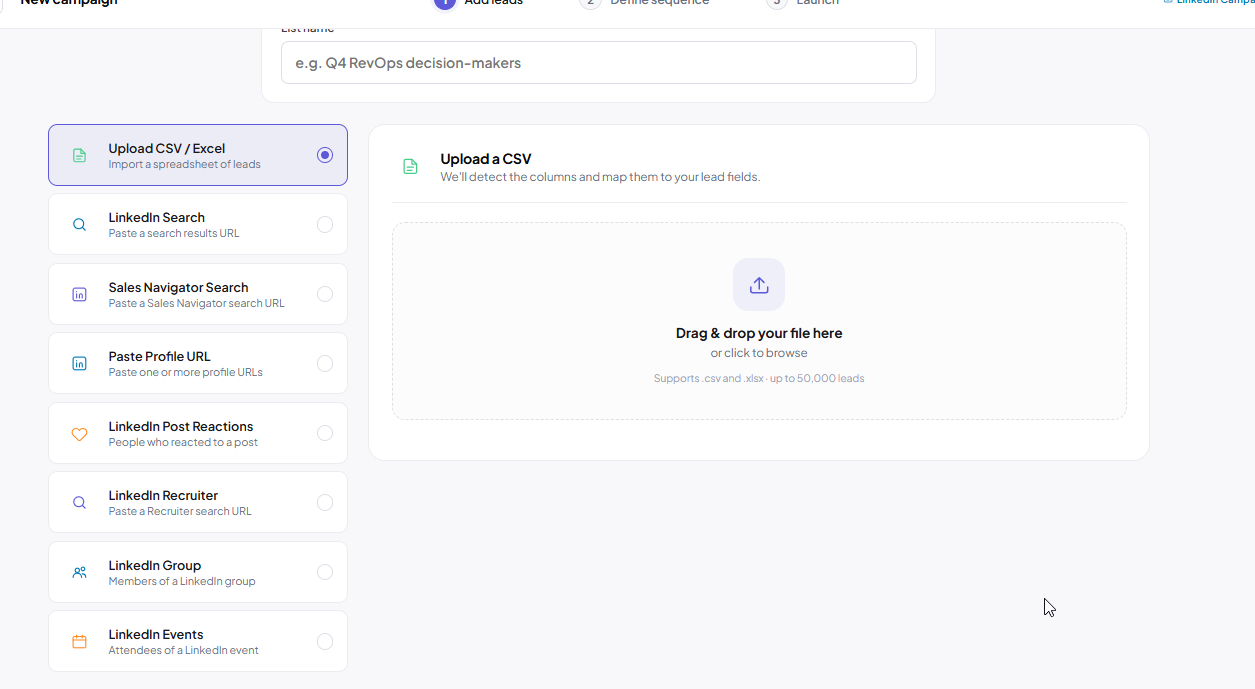
lead source
Choose one or more LinkedIn accounts that will send messages for this campaign.
Using multiple sender accounts helps distribute campaign activity and improves scalability while ensuring each account stays within its configured activity limits.
You can use:
Connected LinkedIn accounts
Rented LinkedIn accounts
The Campaign Builder lets you visually design your outreach workflow using LinkedIn actions, delays, and conditions.
Available LinkedIn actions include:
Send Connection Request
Send Message
Send InMail
View Profile
Follow Profile
Like a Post
Comment on a Post
Endorse Skills
Withdraw Connection Request
You can combine these actions with delays and conditions to create personalized outreach sequences.
For example:
Send Connection Request
        ↓
Wait 5 Days
        ↓
If Connection Accepted
        ↓
View Profile
        ↓
Send Message
        ↓
Wait 3 Days
        ↓
If No Reply
        ↓
Send Follow-up Message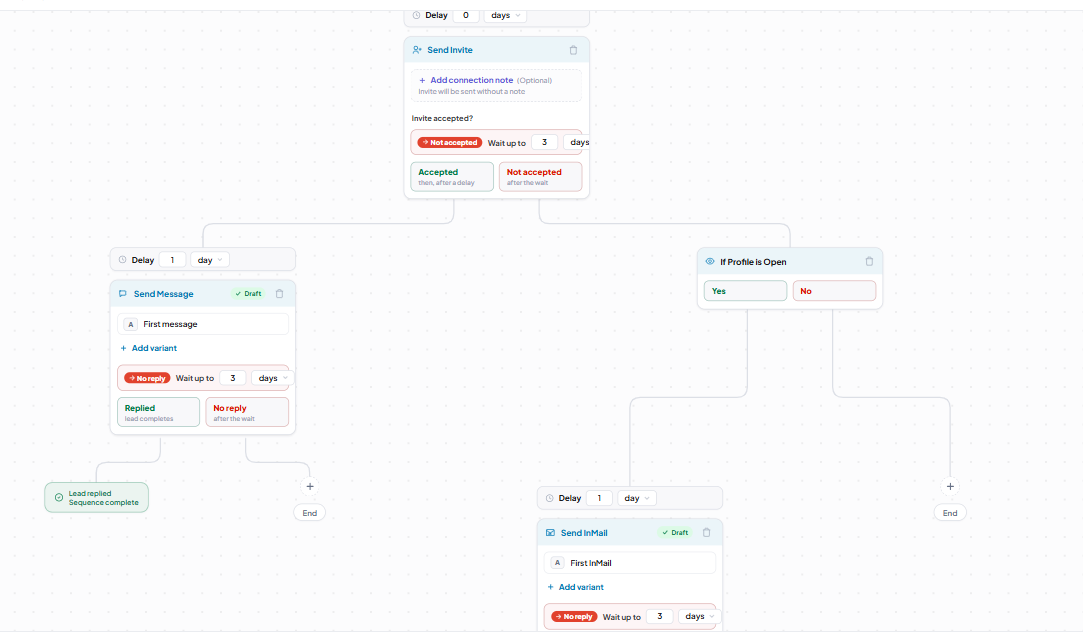
Sequence Builder
For every messaging step, you can either:
Write your own message template.
Use personalization variables.
Enable AI Personalization to generate unique messages for every prospect.
AI Personalization can be used for:
Connection notes
LinkedIn Messages
InMails
For more information, see Using AI Personalization in Outboundry
Before launching your campaign, review:
Campaign name
Lead source
Number of leads
Sender accounts
Campaign sequence
Schedule
Activity limits
Once everything looks correct, click Launch.
Your campaign status changes from Draft to Active, and Outboundry begins executing your outreach sequence automatically.
A LinkedIn campaign can have several statuses during its lifecycle.
The campaign has been created but hasn't been launched.
You can continue editing every part of the campaign.
The campaign is currently running.
Outboundry automatically schedules actions while respecting each sender account's configured activity limits.
A paused campaign temporarily stops executing new actions.
You can resume the campaign at any time.
The campaign has finished processing all eligible leads.
Once your campaign is active, you can monitor every action performed by the campaign from the Activities tab.
Navigate to:
Campaigns → Select Campaign → Activities
The Activities tab provides a chronological view of everything happening within your campaign.
Depending on your sequence, you'll see activities such as:
Connection requests sent
Messages sent
InMails sent
Profile views
Follow actions
Likes
Comments
Withdrawn connection requests
Failed activities
Upcoming scheduled activities
This page is useful for tracking campaign execution and identifying any issues with individual actions.
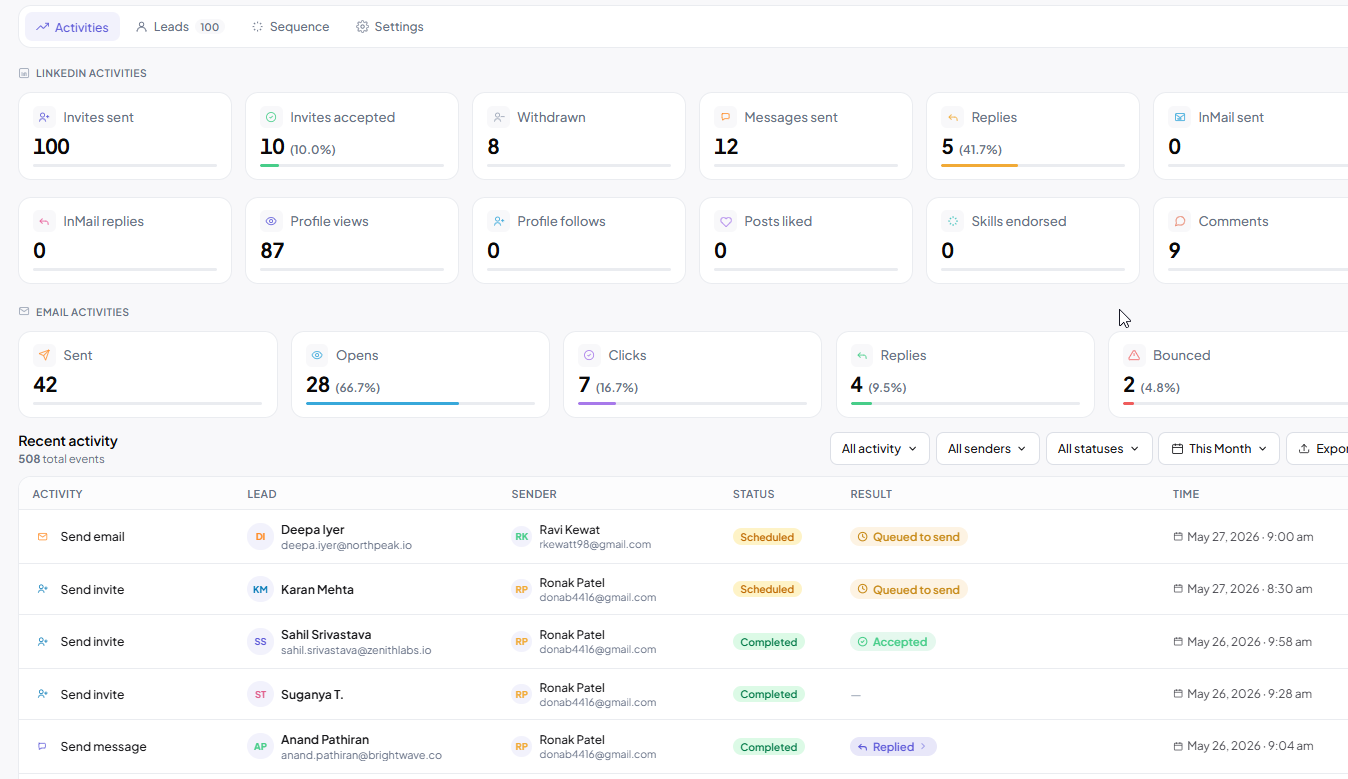
Activities tab
To monitor the progress of individual prospects, open the Leads tab.
Navigate to:
Campaigns → Select Campaign → Leads
The Leads tab provides a complete overview of everyone enrolled in the campaign.
For each lead, you can view:
Name
Company
Current campaign status
Current sequence step
Connection status
Reply status
Campaign progress
You can also search, filter, and manage leads directly from this page.
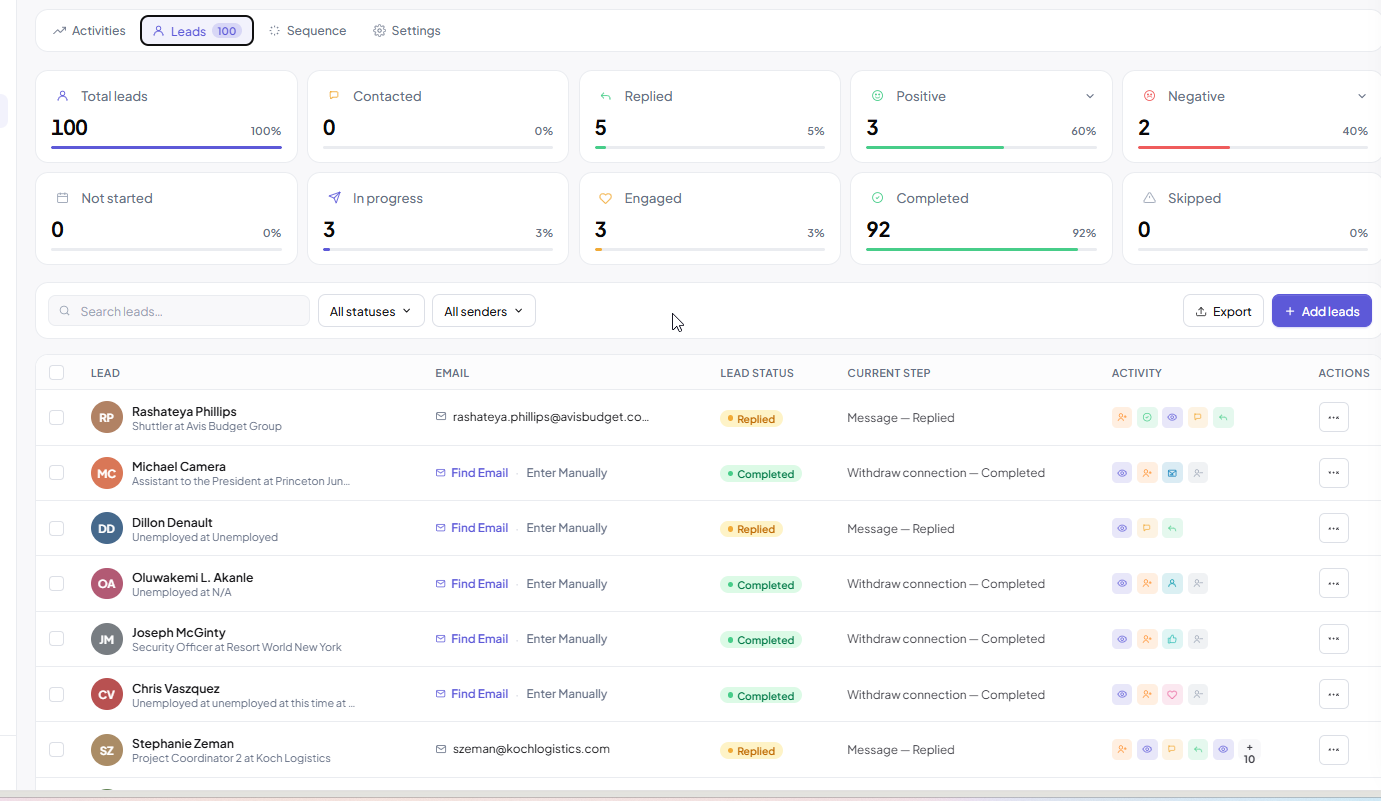
Leads tab
Each LinkedIn sender account has its own activity limits.
Outboundry automatically distributes campaign activity across all assigned sender accounts to ensure no account exceeds its configured daily limits.
This helps maintain healthy LinkedIn activity while allowing campaigns to scale efficiently.
To maximize campaign performance:
Use personalized connection requests whenever possible.
Assign multiple sender accounts for larger campaigns.
Keep daily activity limits conservative to maintain account health.
Add delays between outreach steps to create natural engagement.
Use AI Personalization for messages and InMails.
Build sequences that respond to prospect actions, such as accepted connections or replies.
Monitor the Activities tab regularly to ensure your campaign is running smoothly.
Review the Leads tab to track individual prospect progress and identify opportunities for follow-up.
You can import leads from:
CSV files (with a LinkedIn Profile URL column)
LinkedIn Search URLs
Sales Navigator Search URLs
LinkedIn Recruiter URLs
LinkedIn profile URLs
LinkedIn Post URLs (Post Reactors)
LinkedIn Group URLs
LinkedIn Event URLs
Yes.
You can assign multiple connected or rented LinkedIn accounts to the same campaign. Outboundry automatically distributes activity across all sender accounts while respecting each account's daily limits.
LinkedIn campaigns support:
Connection Requests
Messages
InMails
Profile Views
Follow Profile
Like Posts
Comment on Posts
Endorse Skills
Withdraw Connection Requests
An individual step may fail if:
The LinkedIn profile is unavailable.
The profile has restrictions.
The LinkedIn resource no longer exists.
The required action cannot be completed.
Failures affect only that specific lead. The rest of the campaign continues running normally.
Open: Campaign → Activities
The Activities tab shows every action performed by the campaign, including completed, scheduled, and failed activities.
Open: Campaign → Leads
The Leads tab displays every enrolled prospect along with their campaign progress, current sequence step, and engagement status.
Yes. You can modify senders, campaign settings, step content (emails, messages) delays etc. It's not possible to add or remove a step after a campaign gets activated.