Important: Outboundry supports Google Workspace accounts only. Personal Gmail accounts ending in @gmail.com are not supported.
If your organisation uses Google Workspace, your Google Workspace administrator must first approve Outboundry before you can connect your email account.
To connect your email account to Outboundry:
You must have a Google Workspace email account, such as [email protected].
Your Google Workspace administrator must configure and approve Outboundry.
You must have access to the Google account you want to connect.
If you're not a Google Workspace administrator, share the "For Google Workspace Administrators" section below with your administrator.
Before your team members can connect their Google Workspace accounts to Outboundry, you need to allow Outboundry in your organization's Google Admin Console.
Sign in to your Google Workspace Admin Console.
Note: You need the appropriate administrator permissions to manage third-party app access.
From the Admin Console, navigate to:
Security → Access and data control → API controls
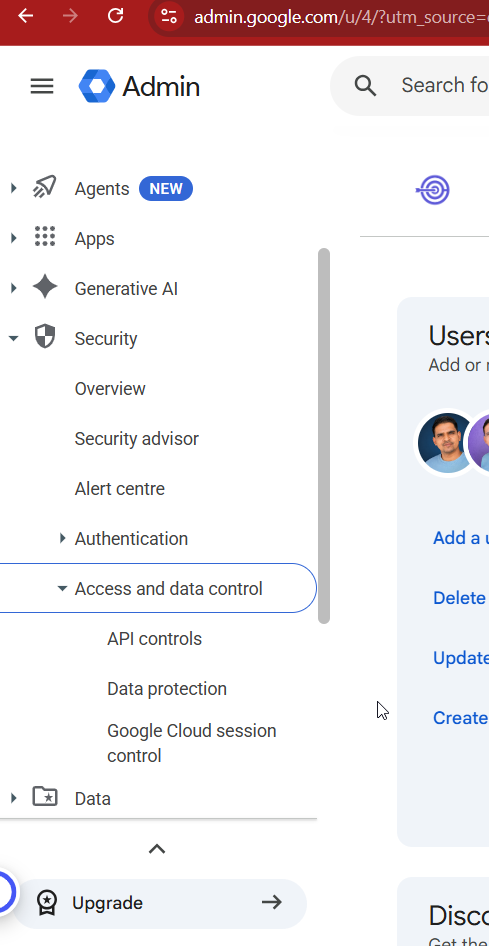
Under App access control, click:
Manage App Access
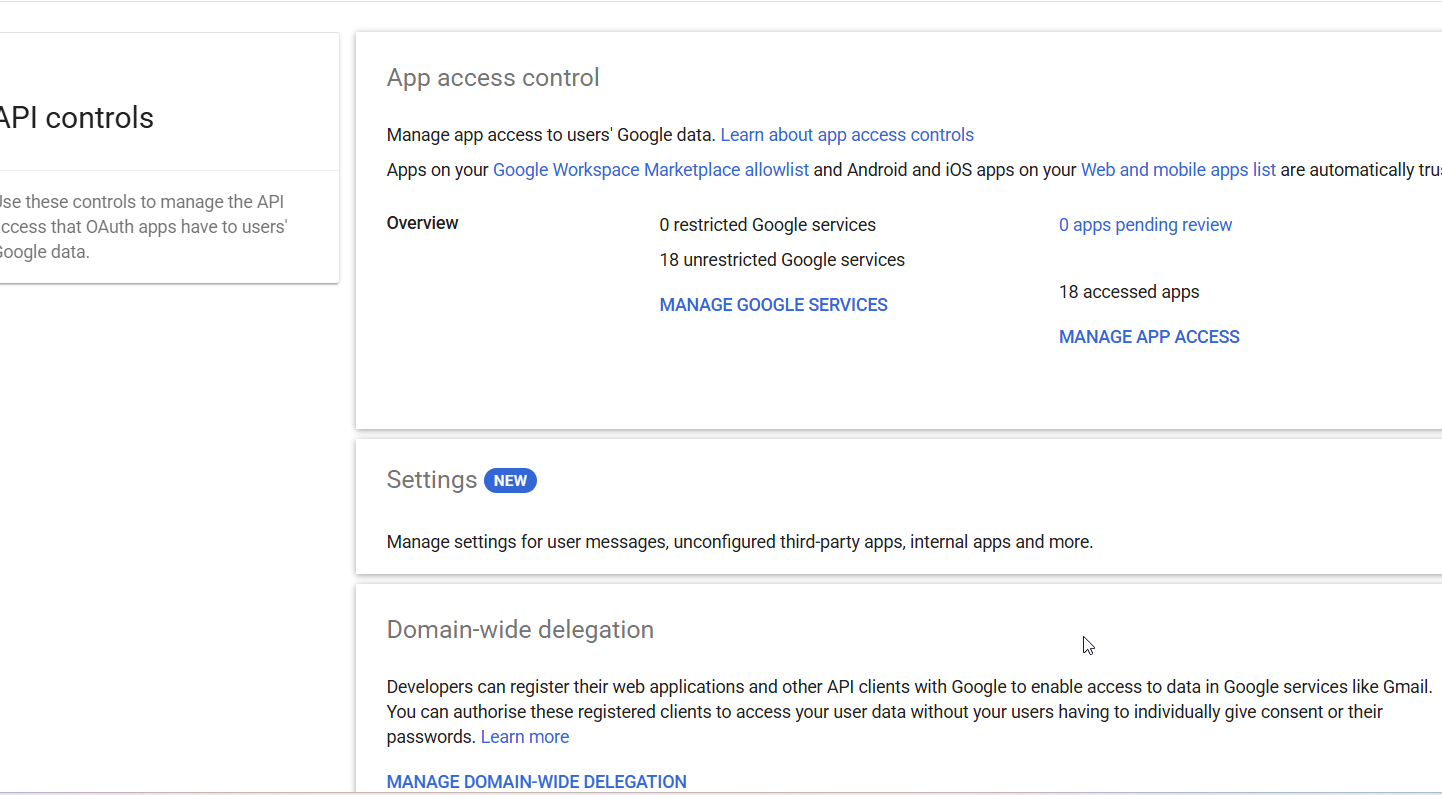
Click:
Configure new app
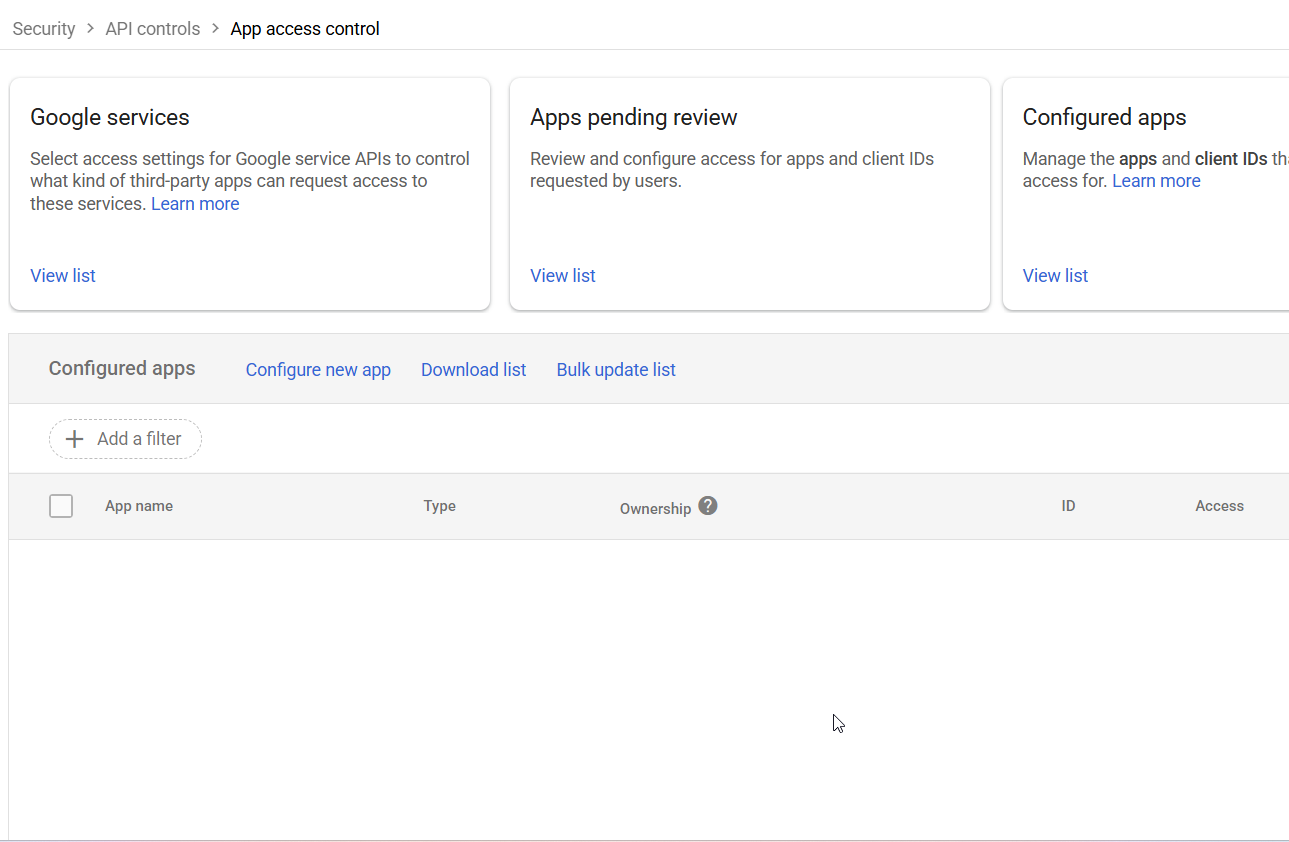
Select:
OAuth App Name or Client ID
Search for Outboundry using the Client ID provided below:
Outboundry Client ID:
585219549068-7lktp6oqu8iolnoptu8ror847raqqkh2.apps.googleusercontent.com
Select Outboundry from the search results and click Select.
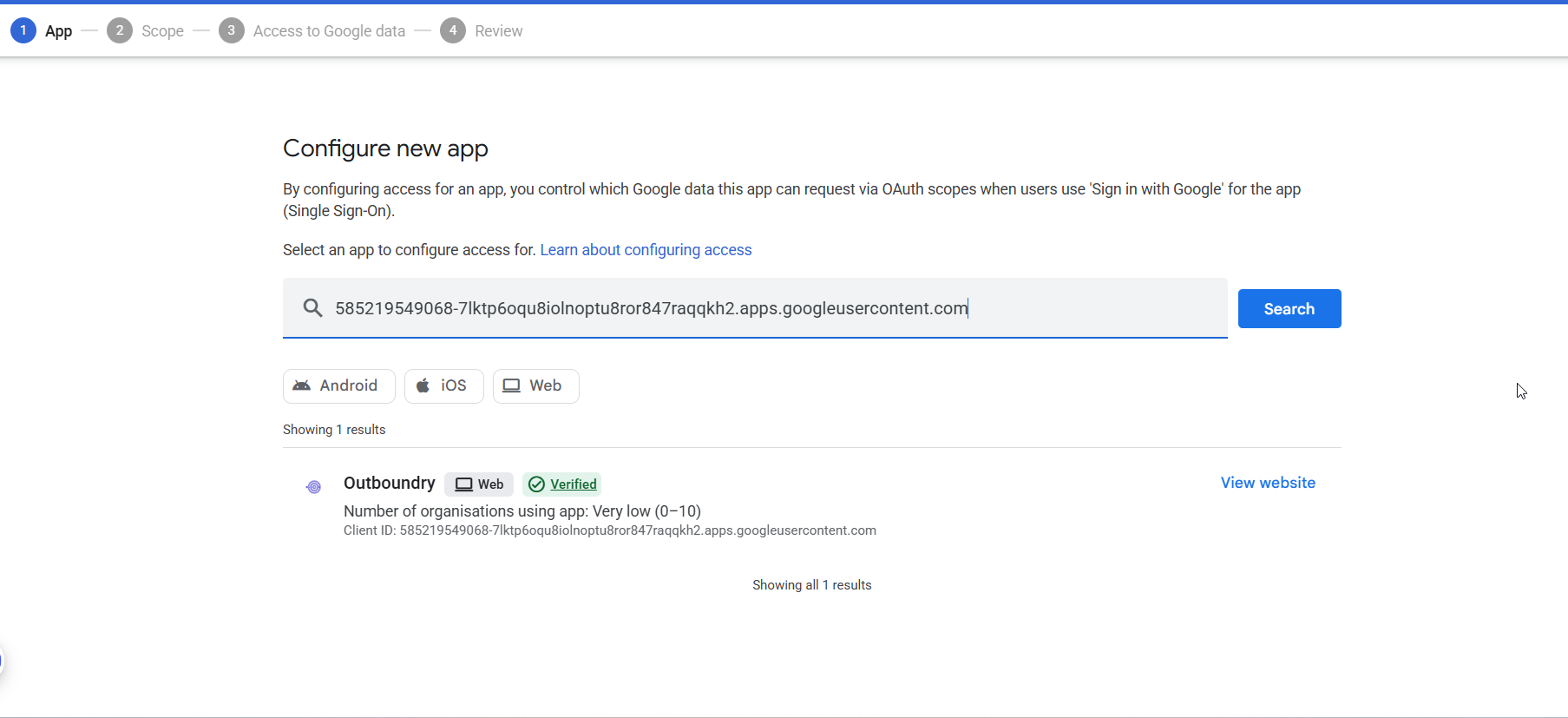
Can't find Outboundry? Make sure you're searching using the correct Client ID and that you're using an administrator account with the required permissions.
Choose the users or organisational units that should be allowed to connect their Google Workspace accounts to Outboundry.
If you want all users in your organisation to be able to connect their accounts, select All users.
Alternatively, you can restrict access to specific organisational units.
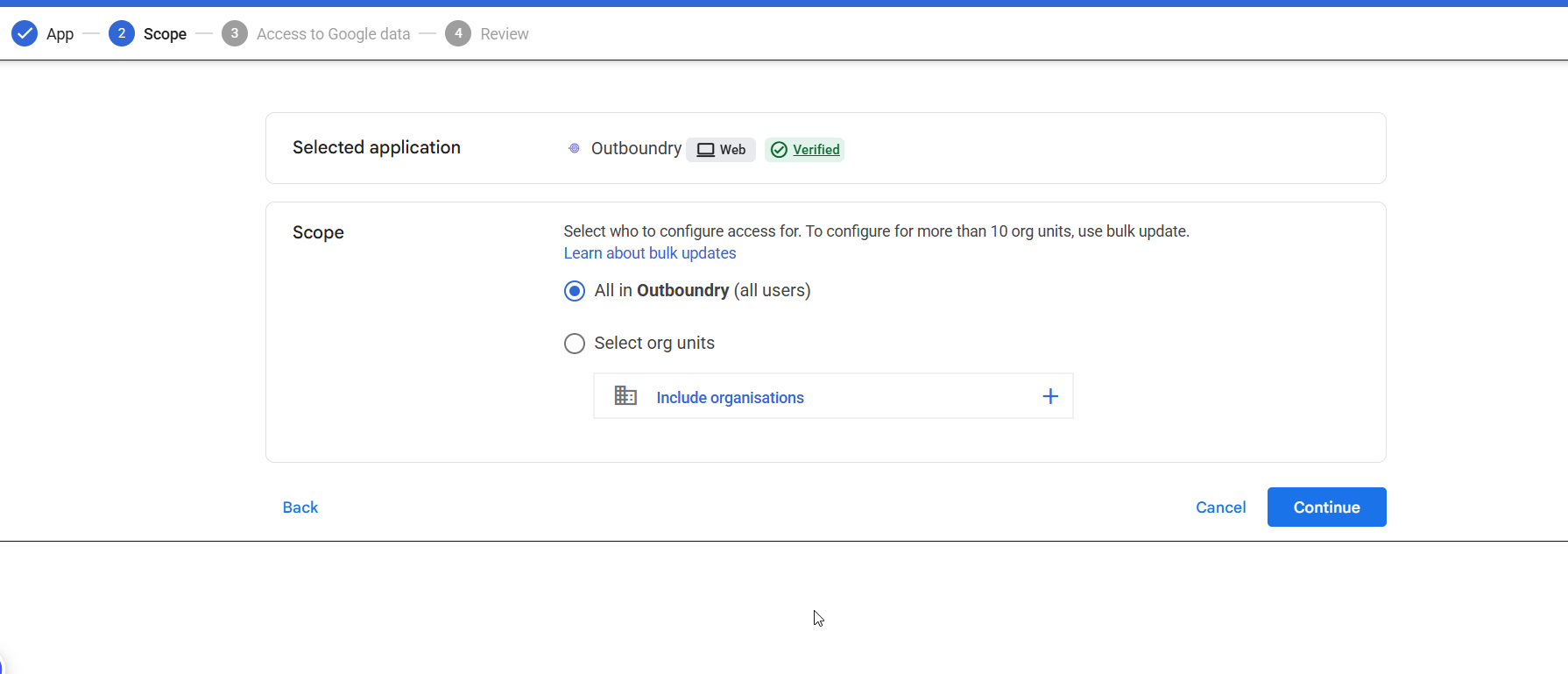
Click Continue.
Under the app access settings, select:
Trusted
This allows users in the selected organisational units to authorise Outboundry to access the required Google Workspace data.
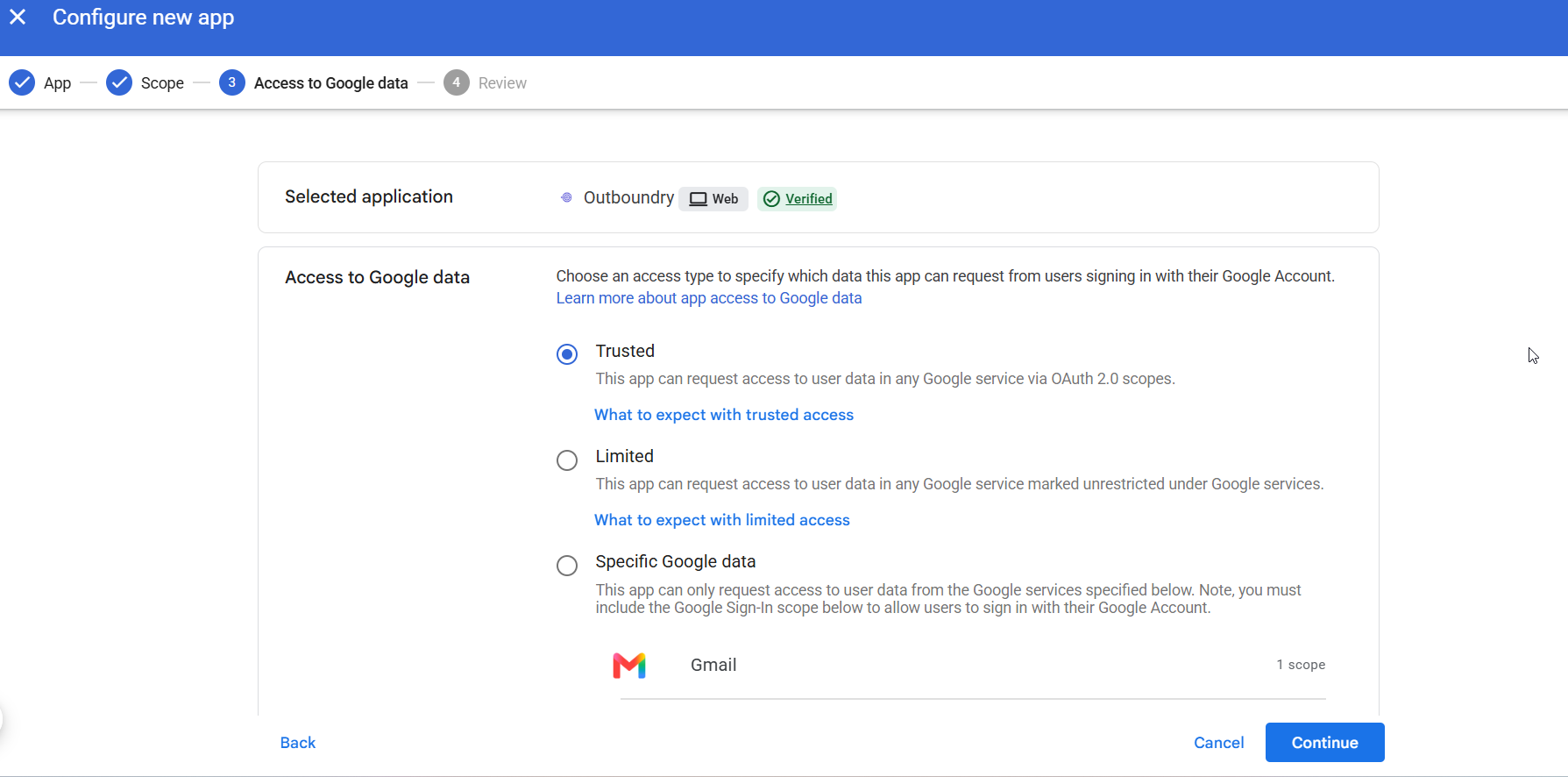
Click Continue.
Review your settings and click Configure to save the changes.
Outboundry is now approved for the selected Google Workspace users.
Note: Google Workspace may take some time to apply changes. If a user immediately encounters an access error after the configuration, wait a few minutes and try again.
Once your administrator has approved Outboundry, you can connect your Google Workspace email account.
Log in to your Outboundry account and go to your Email Accounts tab.
Click:
Add Email Account
Then select:
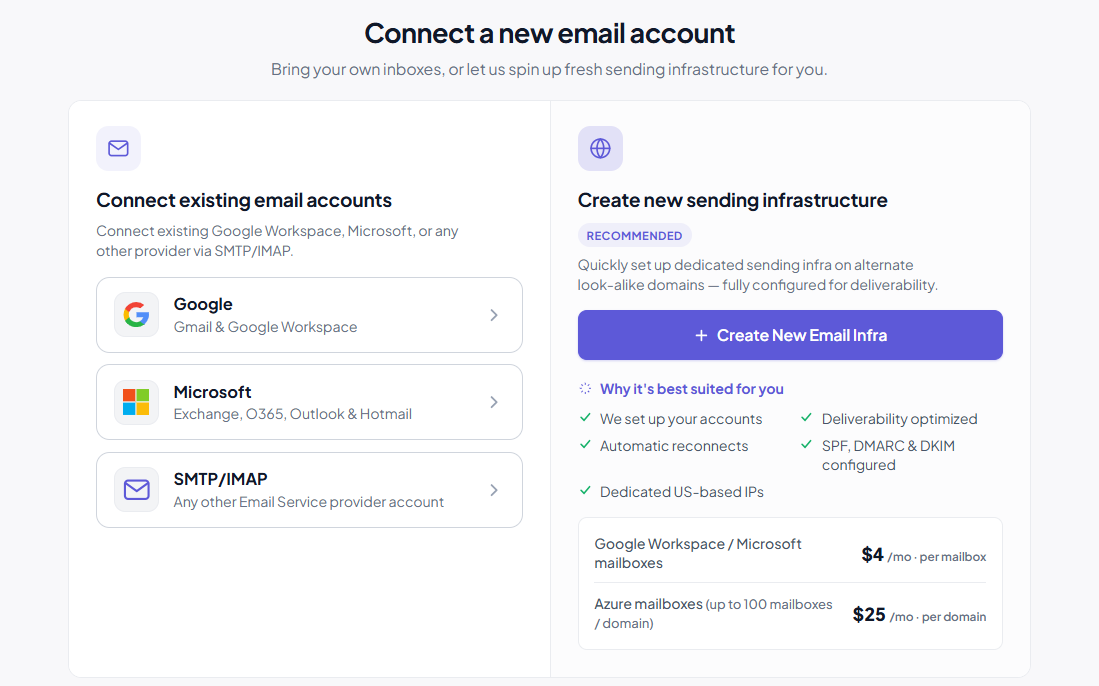
Click:
Continue with Google
Select the Google Workspace account you want to connect to Outboundry.
For example:
Note: Personal Gmail accounts (@gmail.com) are not supported.
If you don't see your work account, make sure you're signed in to the correct Google Workspace account in your browser.
Google will show you the permissions requested by Outboundry.
Review the permissions and click Allow to authorise the connection.
Your Google Workspace account will then be connected to Outboundry.
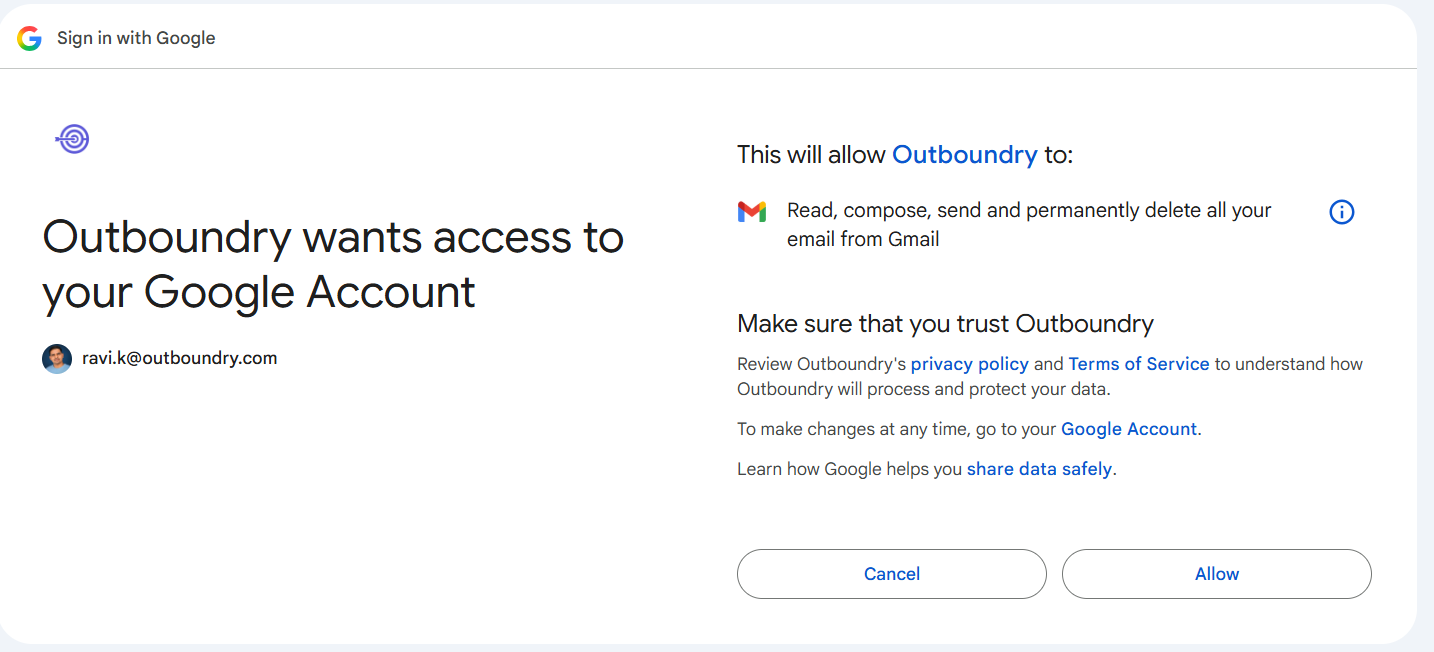
Once the connection is successful, your Google Workspace mailbox will appear in Outboundry.
You can now use the connected mailbox for your Outboundry campaigns and supported email features.
This usually means Outboundry has not yet been approved by your Google Workspace administrator.
Ask your administrator to complete the Google Workspace Administrator Setup above.
If your administrator has already configured Outboundry, wait a few minutes and try connecting again.
Make sure your administrator:
Selects OAuth App Name or Client ID
Uses the correct Outboundry Client ID
Is signed in with an account that has the required Google Workspace admin permissions
If Outboundry still doesn't appear, contact Outboundry Support.
Make sure you're signed in to the correct work Google account.
Outboundry does not support personal Gmail accounts ending in @gmail.com.
For example:
Account
Supported?
✅ Yes | |
✅ Yes | |
❌ No |
Your organization's Google Workspace administrator may have restricted third-party applications.
Ask your administrator to verify that Outboundry is configured as a Trusted app for your account or organisational unit.
No. Outboundry only supports Google Workspace accounts. Personal Gmail accounts ending in @gmail.com cannot be connected.
No. The administrator can configure Outboundry for the entire organisation or selected organisational units. Once approved, users within the allowed scope can connect their individual Google Workspace accounts.
No. Outboundry uses Google's OAuth authentication. Your Google password is never shared with Outboundry.
Yes, subject to your Outboundry account's mailbox limits and your organization's Google Workspace policies.